
Dispatch
Pack the orders and requests handed to you, record each consignment and the firm that invoices it, attach the bilty when the transporter sends it, track books still owed, and take returns back.
/field/dispatchDispatch is the warehouse's whole job on one screen: what to pack, what has gone, what's still owed, and what has come back. Recording a consignment here is also what raises its invoice.
Warehouse staff with the Dispatch (Warehouse) role see just two items in the sidebar, Dispatch and Orders, and the header reads Dispatch. Administrators find Dispatch below their other menu items.
What reaches you
You see only the orders and requests handed to you. An administrator sees the whole warehouse's work, including any approved request that nobody was named to pack, which the administrator ships.
- When a manager approves an order or validates a stock or sampling request, they choose who packs it in Packed by.
- When an administrator approves it, it lands in your queue and you're notified that it's assigned to you. The link opens the right tab.
If an order should go to someone else, for example while you're on leave, a manager in the rep's reporting line or an administrator hands it on from the order's page. You can't pass it on yourself.
The tabs
| Tab | What's in it |
|---|---|
| To pack | Orders handed to you with books still to send: those not yet dispatched, and those part dispatched, marked Balance. This is where you record a dispatch. |
| Dispatched | Orders you've sent, in whole or in part. The Consignments column lists each consignment with its invoice, and is where you attach each one's bilty once the transporter hands it over. A part-dispatched order shows here and under To pack. |
| Requests to pack | Stock and sampling requests handed to you, including any with copies still owed after a part shipment. |
| Shortfall | Every book still owed, on orders and requests, with a spreadsheet to download or send. |
| Returns | Books that came back to the warehouse, and the button to record the next parcel. |
The two order tabs have a Search box that finds an order by its number, the school, the party billed or the docket number.
Record a dispatch
Find the order
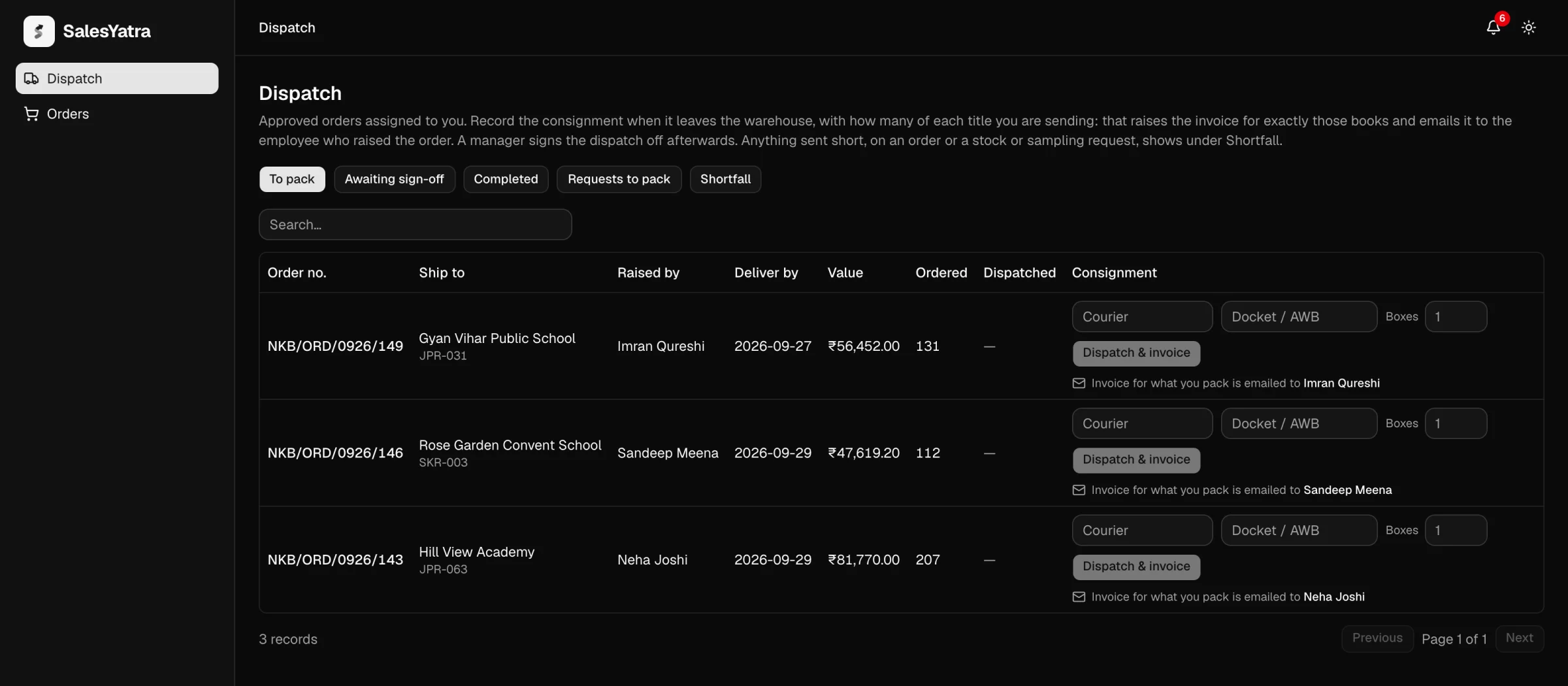
On To pack, each row shows the Order no., Ship to, Raised by, Deliver by, Value, the books Ordered, Dispatched and still To send, and the Consignment boxes. An order you have already sent part of has a Balance badge under its number, and To send shows how many books are still owed.
Ship to is who the parcel is addressed to. When that isn't the school the order is for, the row adds "for" and the school's name. When the rep typed a name and address instead of a school, that address is shown. Select the order number to open the whole order.
Enter the consignment
Type the Courier and the Docket / AWB number. Set Boxes to the number of parcels. It counts boxes, not books.
Check the quantity of each title
Under the boxes is a line for each title, with columns Title, Ordered, Dispatching and Short. Dispatching starts at the full quantity ordered. If the shelf is short of a title, lower its number to what's actually going in the boxes, and Short shows the gap. Send what you have: the gap stays owed on the order.
On a Balance row, only the titles still owed are listed, and the column reads Still owed instead of Ordered.
Or select Scan to pack and scan each book as it goes into the carton. The first scan sets every title to nothing, each scan adds a copy, and a title you don't scan goes as short. See Scanning books.
A title can't go out in more copies than are still owed, and a dispatch must contain at least one book.
Choose the firm the invoice is from
Under Invoice from, select Domato Book Co. or Dominions. The firm you choose bills every book in the consignment, and its name, GSTIN and address appear under the choice, as they'll print at the top of the invoice. A firm without a GSTIN shows "Not registered under GST", and its invoice is headed Invoice rather than Tax Invoice.
Nothing is chosen for you, unless only one firm is set up in the books, and Dispatch & invoice stays greyed out until you pick one. An invoice raised by the wrong firm can only be cancelled and raised again by the accounts desk, after the rep already has the first one.
Dispatch and invoice
The line under the button says which firm's invoice it is, what it will bill and who receives it, for example "Invoice from Dominions for 50 of 100 books is emailed to" the rep, "the rest stays on the order". Check it, then select Dispatch & invoice. The dispatch is dated today.
Dispatch & invoice can't be undone. It raises the invoice from the firm you chose, for exactly the books you entered, and emails it to the rep. Nobody can send it back, so check the quantities before you select it.
Record a dispatch from the order's page
You can also open the order and select Record dispatch, or Dispatch the balance on an order you've sent part of. The form asks for the same things and a few more. Use it when the parcel left on an earlier day, or you want to add an expected delivery date or remarks.
| Field | What to enter | Required |
|---|---|---|
| Invoice from | The firm whose invoice this is. Its name, address, GSTIN and phone are shown as the invoice will print them. | Yes |
| Courier / transporter | Who is carrying the parcel | Yes |
| Docket / AWB number | The courier's tracking number | Yes |
| Boxes | How many parcels | Yes |
| Dispatched on | The day it left. Starts at today. | Yes |
| Expected delivery (optional) | When it should arrive | No |
| Quantity per title | How many copies of each title went, under Dispatching. For a balance, only the titles still owed are listed. | At least one book |
| Remarks (optional) | Anything the rep should know, such as "2 titles short, balance next week" | No |
What recording a dispatch does
In one step, SalesYatra:
- records the consignment on the order, numbered from 1, with its courier, docket and boxes.
- moves the order to DISPATCHED if every book has now gone. That ends the order: no manager signs it off. If books are still owed, the order becomes PART DISPATCHED and stays under To pack for the balance.
- raises one invoice, from the firm you chose, for the quantities you packed in this consignment. Any freight on the order goes on the first consignment's invoice only. That firm bills every book in the parcel, whichever firm the catalogue lists the title under, and its name, address and GSTIN are printed on the invoice. A short consignment is billed short.
- takes the copies off the warehouse shelf. If that takes a title below its low-stock level, the administrators are alerted (see Stock).
- emails the invoice PDF to the rep who raised the order. If the billing firm has switched it on, the school or dealer also gets its copy.
A short consignment leaves the order open. The rep sees how many books are still to come and what they're worth, and doesn't raise a new order. When the stock arrives, find the order under To pack (marked Balance) and dispatch the rest the same way. Each consignment raises its own invoice and PDF, emailed to the rep. Until the balance goes, it also shows under Shortfall. The whole journey of an order is on Order lifecycle.
Close the balance
If the rest will never be sent, for example because the title is out of print, open the order and select Close the balance. Say why, and confirm. The order becomes DISPATCHED at what has already gone, and the rep is told with your reason. The rep or their manager can close it too.
Attach the bilty
The transporter gives you the bilty (the lorry receipt, or LR) only once the boxes are booked, which is usually after you've recorded the dispatch. Whoever collects the parcel has to show it at the transporter's office, so attach it as soon as you have it: the rep is emailed its number and sends it on. An order sent in parts has a bilty for each consignment.
Find the order
On Dispatched, the Consignments column lists each consignment with its courier, docket and invoice number, and shows Attach bilty on every consignment still waiting for one. On an order sent in parts, each line starts with its number, such as #2. You can also open the order and select Attach bilty on the consignment's card.
Enter the number
Type the Bilty number as it's printed on the receipt.
Attach the picture
Under Photo or screenshot of the bilty, select Attach a photo or screenshot and pick a JPG, PNG or WebP image, or a PDF, up to 10 MB. It uploads as soon as you pick it. An iPhone photo saved as HEIC is refused: take a screenshot of it instead.
Save it
Select Save and email, followed by the rep's name. Both the number and the picture are needed.
The number then shows on the consignment's line in the order's row, and on its card on the order's page, with the picture. The rep who raised the order gets an email and a notice in their app: "IN TRANSIT — bilty" and its number, with the courier and docket and a link to the order.
If you typed the number wrong or attached the wrong picture, select Change beside the consignment, or Change bilty on its card on the order's page. The form opens with what's there. Correct the number, the picture or both, and save. The rep is emailed the corrected number, marked "(corrected)", and the order's history keeps both.
Only the dispatch employee who packed the order, or an administrator, can attach its bilty, and only once the consignment has gone.
Pack a request
Open Requests to pack
Each row shows the Request no., the Type (Self stock or School sampling), who it was Requested by, where it goes (Ship to), and the copies Requested, Shipped and still To ship.
Enter what's going
In the Pack column, each title still owed has a line with To ship, Shipping and Short. Shipping starts at everything still owed. Lower it for any title you can't send in full.
Ship it
Select Ship, which shows the number of copies going. A request has no courier or docket to record.
If you send fewer copies than asked for, the request becomes PART SHIPPED and stays in your queue with the balance still to ship. Once every copy has gone it becomes SHIPPED and leaves the queue.
Shipping takes the copies off the warehouse shelf and tells the rep. Self-stock copies go onto the rep's own My Stock. Sampling copies go to the school. How requests reach you is on Request lifecycle.
Check the shortfall
Shortfall gathers every book still owed, so you don't have to open orders and requests one by one.
- Sent short shows what left the warehouse short. Include not yet packed adds everything still waiting in your queues.
- Orders & requests, Orders or Requests chooses which kind to show.
- The search box finds a school, employee, title, or order or request number.
The totals across the top are Books short, Short on orders, Short on requests, Titles short and Can send now. Read the detail By school, By employee or By title.
Find who a title is owed to
By title lists every title short, the most short first, with how many copies are On shelf. The count is in red when the shelf holds fewer than are owed, so the rest has to be printed or bought in. Each title shows whether the shelf covers it: Shelf covers all, Shelf covers 12 of 50, or Waiting for stock.
Click a title to open it. You see every order and request that is short of it, oldest first, with the school, the employee who asked, the date it was raised, and how many are short. Click an order number to open the order, or a request number to open the request.
Can send now is how many copies of a line the shelf could fill today. The shelf goes to the oldest line first, then the next, until it runs out. So when a reprint comes in, open the title to see which orders and requests it fills and which still wait. An order that ended short, because its balance was closed or it was sent short before orders could go in parts, still shows what it was short, but the shelf is never set aside for it: nothing more can be packed on it.
Narrow the shortfall
Below the search box are three pickers: All schools, All employees and All titles. Click one and type part of a name or code to find it. Each choice shows how many books are short against it. Pick one to show only that school, employee or title, in every view.
Press Can send now to show only the lines the shelf can fill today. Clear filters takes every picker back to all.
Share the shortfall
-
Export .xlsx downloads the same view as an Excel workbook, with sheets by school, by employee, by line and by title, each with a Can send now column. When the view is narrowed, the workbook is narrowed the same way, and its About sheet says so.
-
Send report emails that workbook, with a Note (optional), and puts a notice in each recipient's app. The button is greyed out when nothing is short. Under Send to, choose who gets it:
- Admins: every other active administrator. What gets reprinted or reordered is their decision. Their notice opens the shortfall.
- Chosen employees: select Add people…, type part of a name or employee code, and pick each person. Send stays greyed out until you've picked someone.
- All employees: every active employee from rep to CEO. The dialog says how many that is.
Employees can't open Dispatch, so their notice opens their Orders instead, where Pending with dispatch shows what is still to come on their own orders. To send someone only what is owed on their own orders and requests, first narrow the shortfall to them with the employee picker (see Narrow the shortfall), then send.
A warehouse employee's shortfall covers only the orders and requests handed to them. An administrator's covers the whole warehouse.
Record a return
When a parcel of books comes back, record it from whoever sent it. A school's or trade party's parcel is recorded against the party, not against an order, because a dealer supplied on many orders sends back one bundle and nobody can say which copy went out on which order. A rep's specimens and a school's samples are recorded against the request they went out on.
Start the return
On Returns, select Record a return. Choose A school or trade party, which is already selected, or A rep's stock or sampling request.
Say who sent it
- A school or trade party. In Sent back by, search by name, code or town. You see every school and trade party, not one rep's patch.
- A rep's stock or sampling request. Search by request number, school or rep. Only shipped requests that still have books out are listed. Select the right one.
Count the books
- A school or trade party. Pick each title in the parcel with Add a title and type its Copies. A title goes on the return once: picking it again adds one to its count. The bin button beside a title takes it off. Titles withdrawn from the catalogue aren't offered. Or select Scan the parcel and scan each book: every scan is one copy.
- A rep's stock or sampling request. For each title, the table shows how many were Sent and how many are Back already. Type the copies in the parcel under Back now, or select Scan the books back and scan each book. You can't enter more than are still out.
Say when and why
Set Came back on, which starts at today and can't be a future day. Fill in Why, which is required, and Remarks (optional), such as the courier or the condition of the books.
Record it
Select Record the return.
A school's or trade party's return isn't checked against what was sent. Its books went out on any number of orders, some billed before the books were kept in SalesYatra, so count what is in the parcel. The accounts desk sees what the party was billed for each title when it prices the credit.
The books go back on the shelf at once, and every administrator is told. What happens next depends on who sent them:
| Books came back from | Status | What happens next |
|---|---|---|
| A school or trade party | AWAITING CREDIT | The party was billed for these books, so the accounts desk is told to raise a credit note (see Returns to credit). For a school, the school's rep is told too. A trade party is on nobody's patch, so no rep is. |
| A rep's stock or sampling request | RESTOCKED | Nothing was billed, so nothing is credited. The rep who raised the request is told. |
An administrator keeps the books too, so after recording a school's or trade party's return they see Raise the credit note now, to price it straight away.
A rep's own stock
Copies coming back from a rep's own self stock also come off their My Stock. You can't take back more than the rep still holds, because samples they've given at schools already came off it. If the parcel holds more than their count shows, record what they hold.
The returns register
The list under Record a return shows every return the warehouse has recorded, not just yours, newest first: Return no., when it Came back, who it came From, the number of Books, its Status, any Credit note and who Recorded by. Under From, a second line says From a school or From a trade party, Self stock or School sampling with the request's number, or Order with the order's number for an older return recorded against an order. Books from a rep's self stock show as that rep's own stock.
Filter the list with the status menu (All returns, Awaiting credit, Credited, Restocked, Cancelled) or search it. Select a return number to see its titles, reason and credit.
| Status | What it means |
|---|---|
| AWAITING CREDIT | A school's or trade party's books are back on the shelf, and the accounts desk hasn't raised the credit note yet. |
| CREDITED | The credit note has been raised. |
| RESTOCKED | Back on the shelf with nothing to credit: a request's books, or a party's books the accounts desk took back without a credit note. |
| CANCELLED | Recorded in error and cancelled. Its books were taken back off the shelf. |
Only an administrator can cancel a return, with Cancel this return and a reason. It can't be cancelled while a credit note raised for it still stands: the accounts desk cancels the credit note first. The full rules are on Returns.
Good to know
- Only you or an administrator can record a dispatch on an order handed to you. Anyone else is told the order is assigned to another dispatch employee. The same goes for its bilty.
- "this order has already moved on — reload and try again" means someone else recorded or changed it first. Reload the page.
- Notification links open the right tab. If a request in the link has already left your queue, the page says so above the list.
- Dispatch is on the web portal only.
Related
Last updated on
Team on the road
See when each person in your team started and ended their day, what their odometer read, roughly how far they travelled, where they were last seen, and the stops they made.
Android app overview
What the SalesYatra Android app is for, what it does that the portal cannot, and where each of its tabs is documented.