
Travel Plans
Get a trip's dates and budget approved, fill in each day and what it cost, and send the plan to your manager for validation.
/field/plansA travel plan is a trip of up to 30 days that your manager signs twice. First they approve the trip itself, its dates and budget, before anything is spent on it. After the trip they validate what it turned out to be: where you were each day, which schools you meant to see, and what each day cost.
You only need a plan for a trip. A day's spend in your own city can be claimed on Daily Expenses without one.
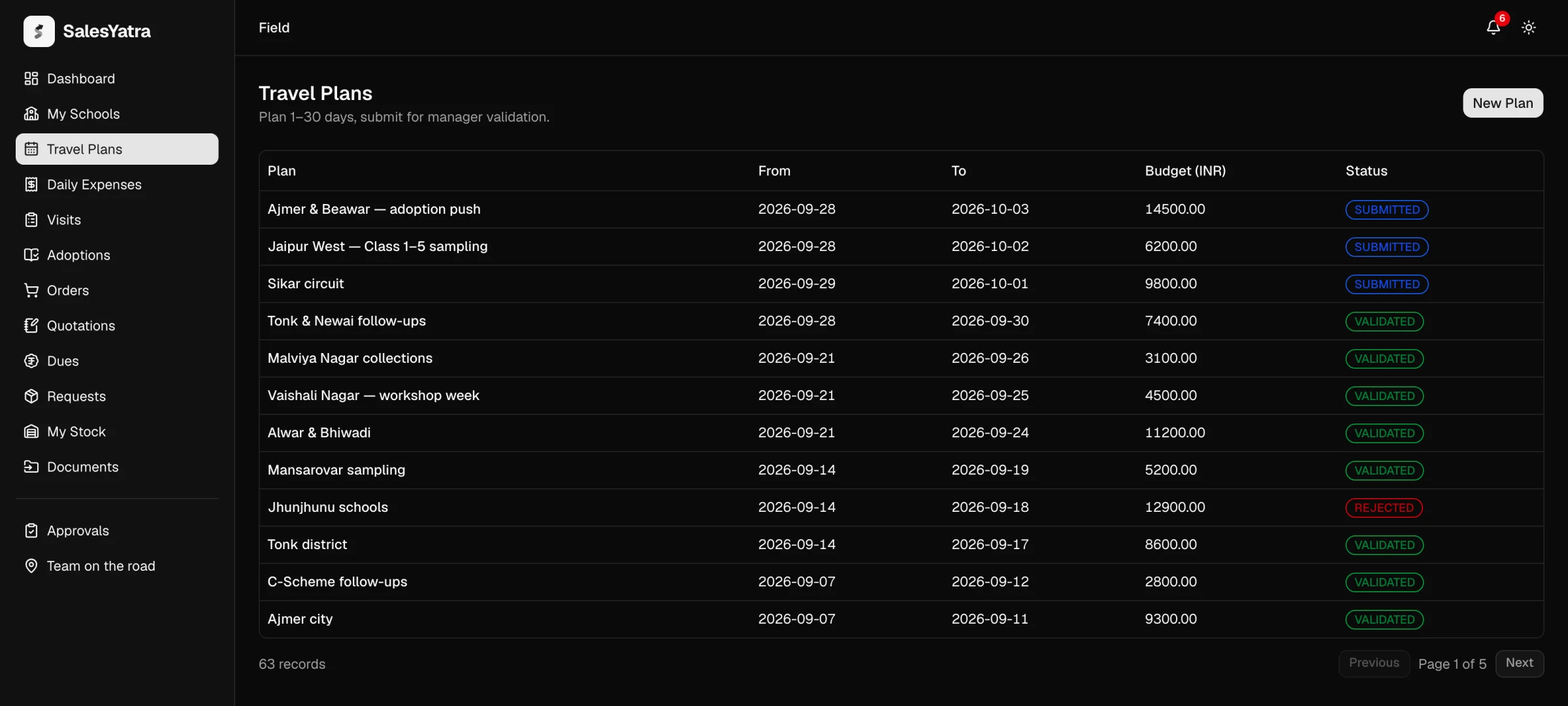
Raise a plan
Start the plan
Open Travel Plans and select New Plan.
Set the dates
Pick the Start date and End date. A plan covers from 1 to 30 days, and the end date cannot be before the start date.
Name it and give a budget
The Plan name fills itself in from the dates, such as "Plan 2026-09-28 to 2026-10-03". Change it to something your manager will recognise, such as the towns you are covering. Budget INR is optional.
Send it
Select Send for approval. There is no separate draft: the plan goes straight to your manager, who gets an email and a notification asking them to review it, and the plan opens with the status PENDING.
Fill in the days
When your manager approves the trip, you get a notification telling you to fill in the days and what each one cost. Open the plan: it has one row for every date from start to end.
Say what kind of day it is
Pick the kind of day from the list. Sundays start as Weekly Off; change it if you are working.
Add the city and the schools
Type the City, then select Pick schools and tick the schools you plan to see that day. The list shows each of your schools with when it was last visited and how many visits it has had. Select Done.
Save the day
Select Save day. The button changes to Saved, and goes back to Save day if you change anything on the row afterwards.
Kinds of day
| Kind of day | What can be claimed on it |
|---|---|
| Out Station Tour | Food, travel, hotel and miscellaneous |
| Ex Station Working | Food, travel and miscellaneous. It is a day trip, out and back, so no hotel. |
| Base City | Travel and miscellaneous |
| Leave, No Plan, Holiday, Weekly Off | Nothing |
Add what each day cost
Once a day is saved, the panel under it shows what you have spent that day and an Add claim button. Until then it says Save the day first, then add what it cost, because the kind of day decides what may be claimed on it.
Each claim is one line, such as a train fare, a meal or a night in a hotel, with its bill attached. The claim form, the per-kilometre rules for a taxi or your own vehicle, and the limit on a single claim are the same as on Daily Expenses.
The top of the plan shows its dates, the budget, and a running Claimed total, so you can see where you stand against the budget as you go. The budget is not a hard limit: nothing refuses a claim for going over it.
Claims you add on a plan also appear on Daily Expenses, locked. They can only be changed here, on the plan.
Send the plan for validation
When every day is filled in, select Submit for validation. The plan goes to your manager with the status SUBMITTED, and its days and claims are locked while your manager reads them.
- If your manager selects Validate, the plan is VALIDATED and finished.
- If your manager selects Reject, the plan comes back to you as REJECTED. The days and claims open again. Correct them and select Submit for validation again.
Statuses
| Status | What it means | What happens next |
|---|---|---|
| PENDING | With your manager, who is deciding on the dates and budget. Nothing can be added to the days yet. | Your manager approves or declines it. |
| APPROVED | Your manager has agreed to the trip. The days and claims are open. | You fill them in and select Submit for validation. |
| DECLINED | Your manager did not agree to the trip. This is final. | Raise a new plan if the trip is still needed. |
| SUBMITTED | With your manager for validation. The days and claims can no longer be changed. | Your manager validates it or sends it back. |
| REJECTED | Sent back to you. The days and claims are open again. | You correct them and submit again. |
| VALIDATED | Your manager has signed off the days and what they cost. This is final. | Nothing. |
| DRAFT | A plan raised before plans needed approval, and never sent. | Select Send for approval on the plan. |
Until a plan is validated, its page says in a line under the title what happens next.
Decide on a plan (managers)
A manager sees a plan from their reporting line in Approvals → Travel plans and on the plan's own page, with two buttons that depend on which signature it is waiting for:
| The plan is | Your buttons | What they do |
|---|---|---|
| PENDING | Approve / Decline | Approving agrees to the trip and its budget. The days and what they cost come back to you for validation afterwards. Declining ends the plan. |
| SUBMITTED | Validate / Reject | Validating signs off the days and claims. Rejecting sends them back to the rep to correct. A day whose drive the rep's check-ins don't account for is flagged, with the reason under the day. |
The rep gets a notification and an email with your decision. You can read a rep's days and claims but not change them. Your own plans go to your manager, so you are never offered a decision on them. See Approvals and Approvals and the reporting line.
Good to know
- Who can open a plan. You, a manager in your reporting line, and the administrators. Nobody else can read your days or claims.
- Why claims wait for approval. Money is only spent on a trip somebody agreed to, so the days and claims open only when the trip is approved, and close again while your manager validates them.
- Linking visits to a plan. When you log a visit or write its report, you can pick the plan it belongs to under Travel plan (optional). See Visits.
- Older days. A day filled in under the old single-figure form shows Recorded earlier with its amount, read-only, so the claim keeps its proof.
- On the phone. The Android app's Plans tab can raise a plan, fill in its days and send it on, and shows each day's claims. Claims themselves are added from the portal, apart from the day's drive, which the app files on the plan's day when you end a day you started with your own vehicle. See Travel plans in the app.
Related
Last updated on