
Visits
Log a school visit, write the report for a check-in made from the app, and read your team's visits as a manager.
/field/visitsVisits is your register of school visits: who you met, what you sampled, what was promised and what was collected. A visit is logged, not approved. Once its report is written it is your record, and you can keep correcting it. Managers read their team's visits here and can leave a comment, but there is nothing to approve.
Two ways to log a visit
This is the way SalesYatra wants visits logged.
- At the school gate, you check in from the app, once you have started your day there. It records where you are and takes a photo, and refuses the check-in if the school has a map pin and you are outside its fence.
- The visit appears here as REPORT PENDING.
- Once the meeting is over, you write the report from the app, or from the portal that evening. Writing it makes the visit LOGGED.
The report does not have to be written at the gate, because who you met and what was promised are only known once you have left. See Visits in the Android app.
Write the report for a check-in
Open the visit
Open Visits. A check-in waiting for its report shows REPORT PENDING and a Write report button. Select it.
Check what was recorded at the gate
The At the school panel shows the time you checked in, how far from the school you were, and the photo. This is the proof of the visit, and it cannot be changed. The school and the date come from the check-in too.
Fill in the report
Set the Visit type, the Person met, and anything you sampled, promised or collected. The fields are listed below.
Save it
Select Save report. The visit is now LOGGED.
Log a visit on the portal
Start the visit
Select Log visit at the top of Visits, or on a school's row in My Schools to have the school chosen for you.
Choose web or app
The portal first asks you to Log this visit from the SalesYatra app instead. Select I'll use the app to go back, or Continue on web to carry on here.
Fill in the visit
Choose the School and the Visit date (today unless you change it), then fill in the report. You can attach a photo with Attach photo of the school.
If the school is not on your list, select Not on your list? Add a new school under School, fill in its name, address and territory, and select Add school. It goes on your list and is chosen for this visit. See Add a school from a visit.
Save it
Select Save visit. It is saved as LOGGED and shows Web in the register.
Fields
| Field | What to enter | Required |
|---|---|---|
| School | One of your schools, or one you add from the form. Portal entries only: a check-in's school is fixed at the gate. | Yes |
| Visit date | The day of the visit. Portal entries only. | Yes |
| Visit type | Intro, Product demo, Follow-up or After-sales. | Yes |
| Academic year | The year the visit is about, in the form 2026-2027. It starts as the current academic year, which runs April to March. | Yes |
| Person met | Who you met, such as the principal. A report with nobody named cannot tell a meeting with the principal from a walk past the gate. | Yes |
| Travel plan (optional) | The travel plan the visit belongs to, if any. | No |
| Photo (optional) | A photo of the school. Portal entries only: a check-in's photo is taken at the gate. | No |
| Titles sampled | Each specimen title you handed over, and how many. Select Add title for each, then search for it by title, ISBN or author. | No |
| Follow-up actions | The department (MARKETING, WAREHOUSE, ACCOUNTS or EXECUTIVE), the action required, and an optional due date. Select Add follow-up for each. | No |
| Collections made | Money the school gave you: the mode (CASH, CHEQUE, DD, UPI or NEFT), the amount and an optional reference number. Select Add collection for each. | No |
| Feedback | The visit's outcome, the school's response and the next steps. | No |
If you save without a school, a visit type or the person met, the form tells you which one is missing.
Samples come off your stock
Every copy you record under Titles sampled is taken off My Stock when you save. You cannot sample more than you are carrying: the save is refused with a message naming the title and how many you actually hold. Correct the quantity, or raise a self-stock request for more. When you correct the samples on a report later, your stock is corrected to match.
Collections go to the accounts desk
A collection on a visit is not a receipt yet. It waits for the accounts desk, which either confirms it into a receipt or dismisses it if the money never reached the company. See Collections. Once confirmed, it shows on your Dues.
Once the desk has confirmed or dismissed a collection, it stays on the visit as it is. Correcting the report later cannot remove it, and keeping it in the report does not send it to the desk a second time.
Add a follow-up to your calendar
Next to each follow-up that has an action, a calendar button opens Google Calendar with the follow-up filled in: an all-day event on its due date if it has one, at the school. Add an event to Google Calendar, under the follow-ups, does the same for anything else about the school, and lets Google ask you for the date. You save the event to whichever Google account you are signed into.
Correct a visit
Your logged visits have an Edit button. It opens the report with everything filled in, and you can change anything except the school, the date and what was recorded at the gate. Select Save report when you are done.
Only the person who logged a visit can write or change its report. A manager who opens one of their team's reports is told that only the rep can change it.
Statuses
| Status | What it means |
|---|---|
| REPORT PENDING | You checked in from the app, but have not written the report yet. |
| LOGGED | The report is written. You can still correct it. |
There is no submitted, approved or rejected visit, and visits never appear in Approvals.
Read the register
| Column | What it shows |
|---|---|
| Date | The visit date. Newest first. |
| School | The school and its code. Select it to open the visit's details. |
| Logged by | Who logged the visit. On My team only. |
| Type | The visit type. |
| Status | REPORT PENDING or LOGGED. |
| Logged from | Mobile, with how far from the school the check-in was when the school has a map pin, or Web. |
| Person met | Who was met. |
| Manager comment | The start of your manager's comment, if there is one. |
The last column has Write report or Edit on your own visits, and View on anybody else's.
Selecting a school opens the visit's details: its status and type, where it was logged from with the position, distance and time of the check-in, the photo, the titles sampled, the follow-ups, the collections, the feedback and the manager's comment.
For managers: your team's visits
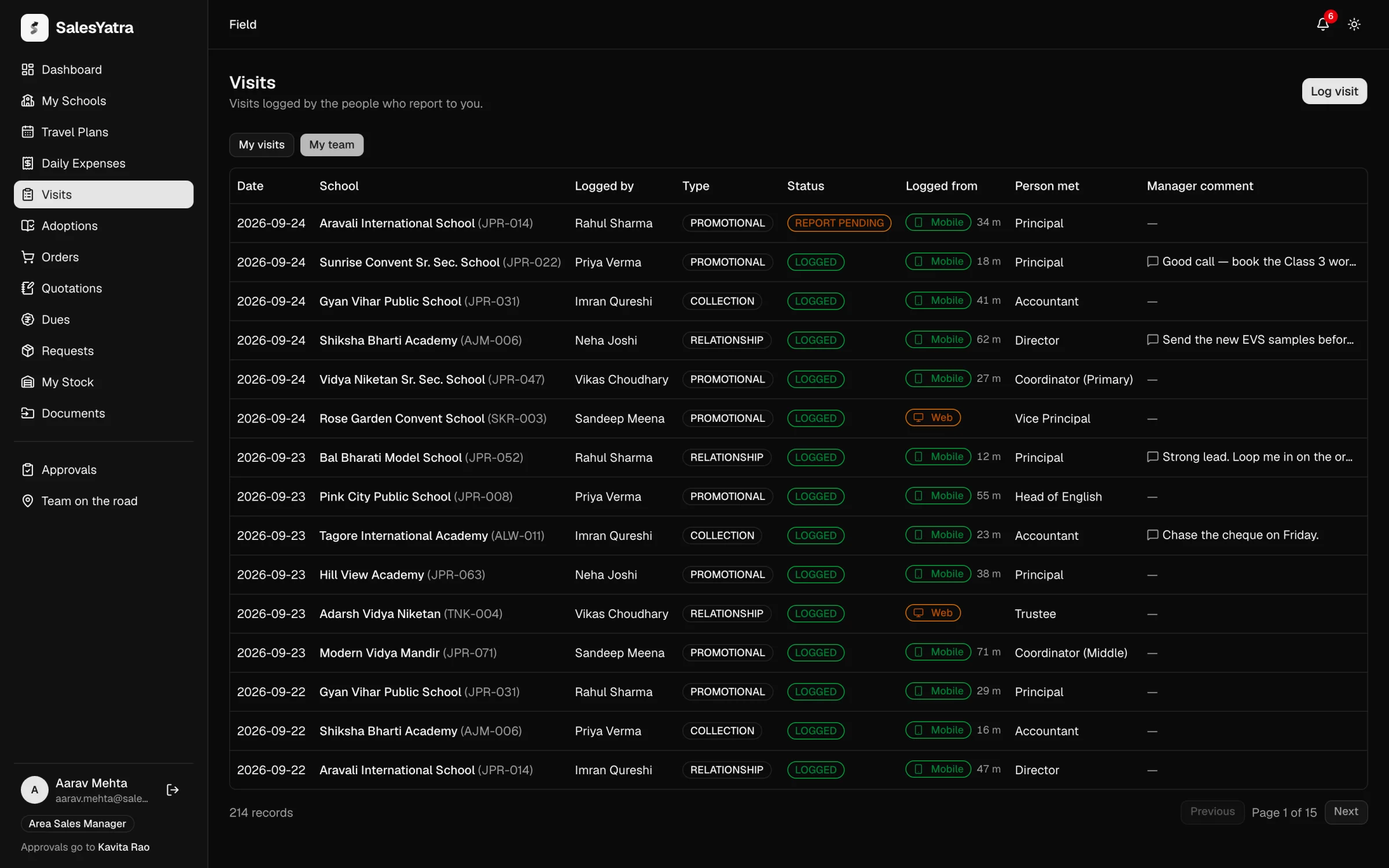
From Area Sales Manager up, Visits has two buttons above the register:
- My visits lists your own.
- My team lists the visits of everyone below you in your reporting line, however many levels down. Your own are not in it.
Look at Logged from: a Mobile visit was checked into from the app at the school, while a Web visit carries no proof of location.
Comment on a visit
- On My team, select the school name or View to open the visit.
- Under Manager comment, type your comment in Add comment.
- Select Save comment.
The comment shows in the rep's register under Manager comment. A visit holds one comment: saving another replaces it. You can only comment on visits from your own reporting line, and not on your own.
An administrator's My visits lists every visit in the company.
Related
Last updated on