
Orders
Raise a school's book order, get it signed by your manager and an administrator, and follow it to the dispatch that invoices it.
/field/ordersAn order is a firm order for books from a school. You raise it, your manager approves it and picks who will pack it, and an administrator gives it the final approval. The warehouse then dispatches it. If the warehouse is short of some books, it sends what it has and the rest follows on the same order when the stock arrives. Each consignment raises its own invoice.
The price of every book comes from the catalogue. You can't change a price, only give a discount, and your manager sees every discount before approving.
How an order moves
PART DISPATCHED happens only when the warehouse sends part of the order. The order stays there until the last book has gone. Either signature can reject the order back to you to fix and resubmit. You or a manager can cancel it at any point before anything is dispatched. The full story, with every notification, is in Order lifecycle.
The order list
Orders lists the most recently raised orders first. Search matches the order number, the school's name, the billed-to name and the docket (AWB) number.
Managers see two buttons above the list:
- My orders: the orders you raised yourself.
- Team orders: the orders raised by everyone in your reporting line below you. These are the orders you can act on. Your own orders are never in this list, because they go to your own manager. An Administrator sees every order here, and the page opens on it for them.
A dispatch employee sees the orders handed to them to pack, the same ones as their Dispatch queue. A dealer's login sees the orders billed to its dealership. See If you are a dealer. Everyone else sees only their own orders.
Pending with dispatch
Above the list, three figures show what the warehouse still owes on your orders. Under Team orders, they cover your team's orders, and for a dispatch employee, the orders handed to them.
| Figure | What it counts |
|---|---|
| Orders not yet fully dispatched | Approved orders that still have at least one book to send. The line underneath says how many are part dispatched. |
| Books still to be sent | Every book still owed across those orders, with a bar for how many have gone so far. |
| Order value still to dispatch | What those books will be billed when they go, at the order's own prices and discounts. Freight counts only until the first consignment, which carries it. |
Select a figure, or See what is pending, to open the detail beside the list:
- By order lists each order still owed books, oldest first, with how many have been sent, how many are still to send and what they are worth.
- By book lists each title still owed, the most first. Select a title to see the orders it is owed on, with Ordered, Sent and To send for each.
When nothing is owed, the figures read 0 and say every approved order has gone.
Narrow the list
The tabs above the list narrow it:
- All: every order.
- Pending with dispatch: approved orders with books still to send, whether part dispatched or not yet packed.
- Part dispatched: orders the warehouse has sent part of.
- Dispatched: orders with nothing left to send. That includes an order whose balance was closed: its row says how many books were not sent.
Under the tabs, Payments on these orders adds up the money on every order in the list, not only the page you are on: what was Billed, what was Received, what is Due and what is Overdue. Select Due or Overdue to list only those orders. Select it again to see them all. See Payment on an order.
The tab, the payment filter and the page you are on stay in the page's address. Open an order and go back, or reload, and the list is as you left it.
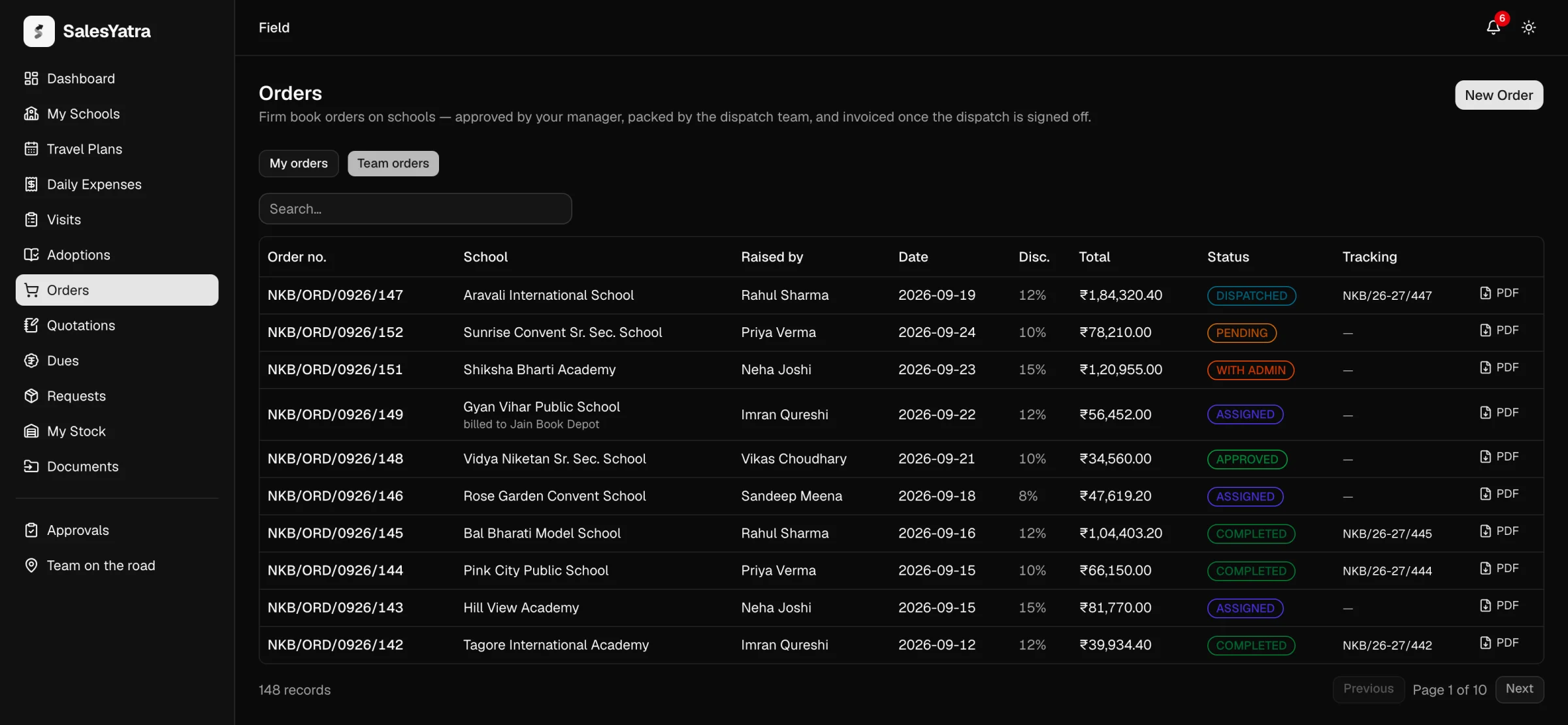
| Column | What it shows |
|---|---|
| Order no. | The order number. Select it to open the order. |
| School | The school the order is for. A second line says "ships to …" when the books go somewhere else, marked (custom) for a typed address, and "billed to …" when someone other than the school is billed, marked (new) for a name not yet on the dealer list. |
| Raised by | Who raised it. |
| Date | The order date. |
| Disc. | Every discount on the order together, as a percentage off the list price. |
| Total | The order total. |
| Received | Money that has come in against the order's invoices, with a bar for how much of the bill that is, and what was billed under it. See Payment on an order. |
| Due | What is still owed on the order's invoices, and when it falls due or how late it is. |
| Status | The order's badge. See Statuses. |
| Dispatch | Once the order is approved: a bar for the books sent against the books ordered, such as "5 of 10 sent", with how many are still to send and what they are worth. It is amber while books are still owed. A fully sent order reads All 10 sent. An order whose balance was closed says how many were not sent. |
| Invoices | Every invoice on the order, one for each consignment (two for a consignment that two firms billed). Before any invoice, the courier and docket number. |
| The order as a PDF. Not shown for a draft. |
Under My orders, a draft has a Check and submit button and a rejected order a Check and resubmit button on its row. Each opens the order's page, where you check it against the dealer's order and submit it. Until you submit, the order is in nobody's approval queue and nobody is told about it. A draft or rejected order with no dealer's order attached shows Attach dealer's order instead, which opens the order's form.
Raise an order
The form is laid out as cards down the page, with the Order summary beside them. The summary's running total updates as you type.
Start the order
Open Orders and select New Order.
School
Under Order for school, pick the school the order is for. The order counts toward this school. The list shows the schools you are accountable for.
Picking the school fills in the billing name and address and the delivery address, and you can change the addresses afterwards.
Books ordered
For each book, open Select title, search for it by title, ISBN or author, and pick it. Titles withdrawn from the catalogue are not offered. Then type the Qty, and type the book's base discount under Disc %. Leave Disc % blank to bill that book at list price. Net shows the line after its base discount.
Select Add book for another line. Use the bin icon to remove one. The last remaining line can't be removed.
With the books in front of you, select Scan books and scan each one instead: every scan is a copy on its title's line, and a new title gets a new line. See Scanning books.
Additional discount
Type an Additional discount % if you are giving one. It is added to every book's own discount. A book at 10% with 5% additional is billed at 15% off the list price. Your manager sees it when approving.
No book can go further off its list price than the discount cap, its own discount and the additional one together. The cap is 40% unless an administrator has changed it, and the form says the figure in force. See How an order is priced.
Billing
Under Bill to, choose who the invoice is made out to:
- The school itself (the default).
- A dealer from the Dealers list. Its name, address and GSTIN come from the dealer list.
- Someone else — type a name, then type the name under Billed to name. This is a new billing party. Your manager and an administrator see it when they approve, and the administrator's final approval adds it to the dealer list.
Check the Billing address. Add the Buyer GSTIN (optional) if the party has one. GST % starts at 0, because printed books carry no GST.
Changing Bill to replaces the whole party, GSTIN included, so a GSTIN typed for one party is never printed on another's invoice. See Billing parties.
Shipment
Ship to starts at the school the order is for. Pick another school if the books go there. To send them somewhere that is not a school, such as a trustee's office or a dealer's godown, choose Someone else — type a name and address and fill in Delivered to name.
Check the Delivery address, and add a Contact person (optional) and Contact phone (optional) for the courier. Your manager and an administrator see a typed delivery address in full before they approve, because it is the only check on where the stock goes.
Order details
Check the Academic year (the current April-to-March year) and the Order date (today). Choose the Shipment mode: courier, transport or hand delivery. Add the Expected delivery (optional) date, the school's purchase order under School PO number (optional) and PO date (optional), and any Remarks (optional).
Dealer's order
Attach the order as the dealer sent it: a screenshot of the WhatsApp message or email, or the PDF. Select Attach a screenshot or PDF and pick the file, or drop it on the box. It can be a JPG, PNG or WebP image, or a PDF, up to 10 MB. A HEIC photo copied off an iPhone is refused: take a screenshot of it instead.
Once it is uploaded, the box shows the file with a link to open it, Replace, and a cross to remove it. Your manager and the administrator check the books and quantities against it before they approve, so the order can't be submitted without it. You can save a draft without it.
Check the summary and submit
The Order summary shows the school, who it is billed to and ships to if those differ, the number of titles and copies, and the price breakdown. If anything required is missing, it lists what under "Still needed before you can save". The buttons stay greyed out until that list is empty. Until the dealer's order is attached, the summary also says "Attach the dealer's order to submit it for approval. You can save a draft without it.", and Submit for approval stays greyed out.
Once the dealer's order is attached and the order has a book on it, an amber box appears above the buttons: Check this order against the dealer's order. It shows the dealer's order with Open it to compare, the school, and every book with its quantity. Read the dealer's order against that list, then tick "I have checked the school, every title and every quantity against the dealer's order." Submit for approval stays greyed out until you tick it, and the box turns green. The warehouse packs and invoices exactly what the order says, so this is the last chance to catch a wrong school, a wrong book or a wrong count.
If you change the school, a book, a quantity or the attachment after ticking, the tick is cleared and you check again. Save draft doesn't need it.
Select Submit for approval to send it to your manager, or Save draft to finish it later. Either way you land on the new order's page, which shows its number.
If a submit is refused, for example over a GSTIN in the wrong format, the order stays on screen with the problem shown under the field. Fix it and submit again. The retry updates the same draft, so you never end up with two orders.
If you are a dealer
Your login opens Orders and nothing else, on the portal and in the Android app. Any other address in the portal brings you back here.
- What you see. Every order billed to your dealership: the ones you place, and the ones our sales team places for you once they have submitted them. Their drafts stay hidden until then. On an order our team placed, you see where it stands, its books, its consignments and its invoices, but not the notes our staff write to each other on it.
- Placing an order. Raise it as in Raise an order, with three differences:
- Billing is fixed. Every order you place is invoiced to your dealership, with the name, address and GSTIN on our dealer list, whatever the form held. To change them, ask your sales representative.
- Order for school and Ship to offer only the schools our administrator has put you on. Ask your representative to add another. You can still type a delivery address that is not a school, such as your godown.
- There is no Dealer's order to attach and nothing to tick before you submit, because the order you place is your order.
- Approval. Submit for approval sends it up the line your login reports into, then to an administrator, like any order. Its approvers are told it was placed from your own login. You are told when it is approved, sent back or dispatched, and the dispatch email carries the invoice.
- What you can change. Your own drafts, and your own orders sent back to you, which you can also cancel. An order our team placed is theirs to change. Once an order is submitted, stopping it or closing the balance of an order sent in part is for our team: ask your representative.
An administrator gives a dealer a login under Executives.
How an order is priced
- The list price is the catalogue's. Each line's rate is the title's list price when you save. You can't type a price. If a title has been withdrawn from the catalogue, the order is refused with "no longer in the catalogue and cannot be ordered".
- Base discount per book. Each book's Disc % comes off its list price.
- Additional discount on top. The additional discount is added to each book's base discount.
- No more than the discount cap. A book's base discount and the additional discount together can't come to more than the cap, 40% of its list price unless an administrator has changed it under Settings. The form says the figure in force under Additional discount. Go past it and the form says so under the discount at fault, for example "with a book at 35%, the additional discount can be at most 5%", and the save buttons stay off until you bring it down. If the cap is lowered while your order is still a draft, Submit for approval is refused until you edit the discounts down to it.
- GST is charged on the taxable value, meaning the books after discounts plus any freight.
- The server prices it. Every save is priced again from the catalogue, using the same calculation as the summary you see. The figure you quote at the school is the figure that reaches the invoice, unless the warehouse packs short.
The breakdown reads Subtotal, Base discount, Additional discount (when you gave one), Freight (only on orders that carry it), Taxable value, GST @ …% and Order total.
Save a draft, then submit it
Only you can change or submit a draft. It sits in nobody's approval queue, nobody is told about it, and nothing happens to it until you submit.
- Open the order from My orders.
- The panel This order is a draft offers Submit for approval, Edit order and Cancel order. Submit for approval is greyed out until the dealer's order is attached, and the panel says so: attach it through Edit order. Once it is attached, the panel shows the same Check this order against the dealer's order box as the form, and Submit for approval waits for your tick. The dealer's order and the books are on the same page, above the panel.
- Edit order reopens the form. There you can Save and submit for approval, Save changes without submitting, or Cancel to leave without saving.
The row's Check and submit button on the list opens this page. There is no one-click submit from the list, because the order has to be checked against the dealer's order first.
When you submit, the order goes to the first manager above you in your reporting line, an Area Sales Manager or higher. If you have no such manager, it goes to the administrators. The order page's Waiting on line names them.
Fix and resubmit a rejected order
When your manager or an administrator rejects an order, you are notified with their note, and the order returns to you as REJECTED.
- Open it. The panel reads Your manager sent this back.
- Select Edit order, correct it, and select Save and resubmit. To resubmit it unchanged, tick the check against the dealer's order and select Resubmit for approval on the order. Check and resubmit on its row opens the order.
An order sent back needs a dealer's order attached before it can be resubmitted, like any other. The resubmitted order starts again with your manager. If it was billed to a new party, rejecting it took that name off the admin panel's list. Resubmitting proposes the name again, as you have now spelt it.
Cancel an order
- Your draft or rejected order: select Cancel order in its panel and confirm.
- A manager can stop an order from their team while it is pending, approved or with the warehouse, using Cancel this order at the foot of its actions.
The confirmation reads "The order stops here and cannot be dispatched or invoiced. This cannot be undone." Once any of an order has been dispatched it can't be cancelled, because an invoice has already been raised. If the rest of the books won't be sent, close the balance instead. See Close the balance.
The order page
Open an order to see everything about it. You can open an order if you raised it, if you are the warehouse employee packing it, if you are a manager above the person who raised it, or if you are an Administrator. A dealer's login opens the orders billed to its dealership.
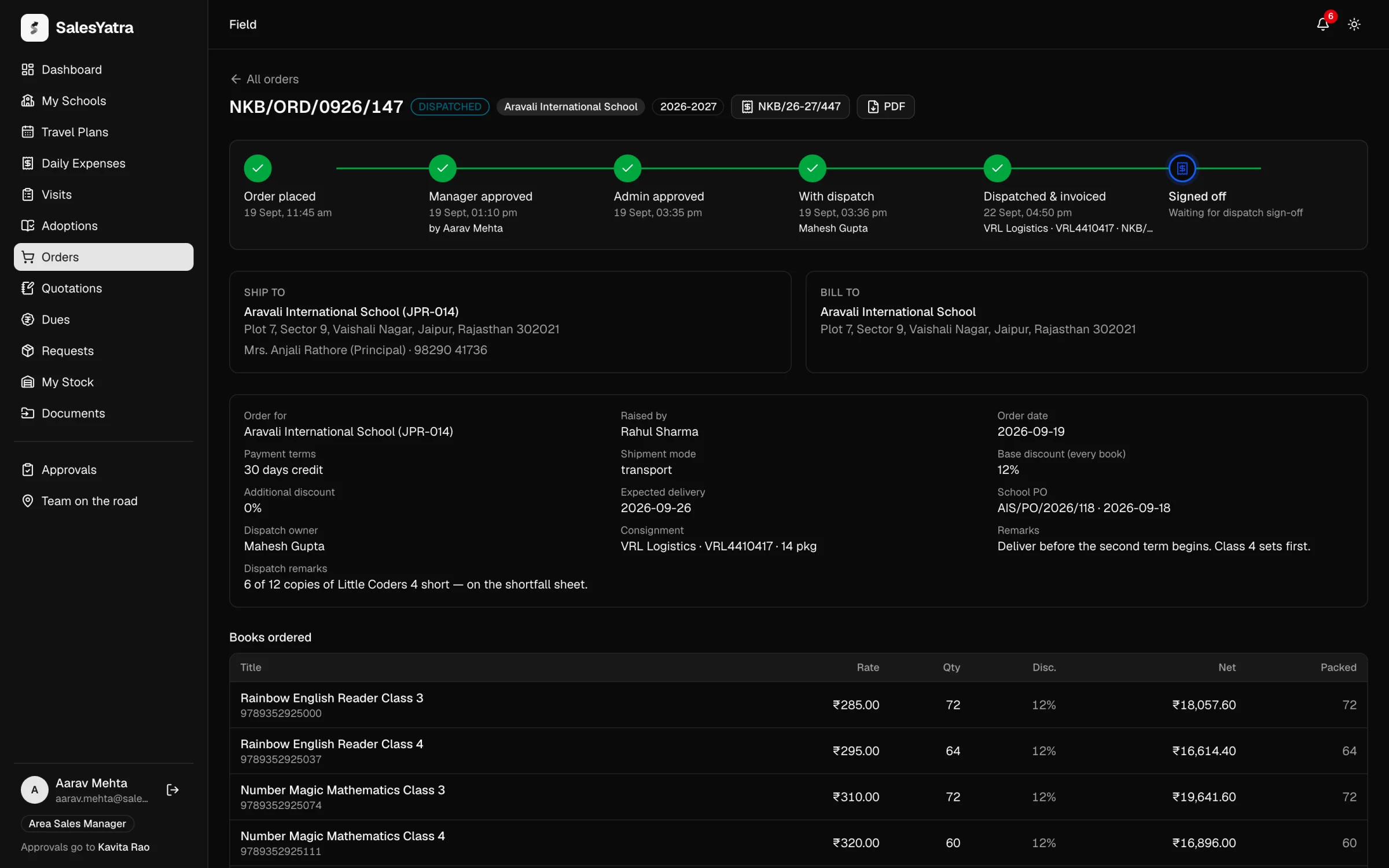
- Header. The order number, its status badge, the school, the academic year, a button for its invoices once there are any (two numbers joined by +, or "3 invoices" when there are more), and PDF.
- Progress tracker. Five steps: Order placed, Manager approved, Admin approved, With dispatch and Dispatched & invoiced, the last. Steps behind the order are ticked with their date and time. The current step says what it is waiting for, and names the approving manager, the dispatch employee, or the courier, docket and invoice number. On a part-dispatched order, the last step stays current and reads, for example, "5 of 10 books sent in 1 consignment". A cancelled order shows how far it got and says it will not be dispatched.
- Ship to and Bill to. The consignee and the billing party, with contact details and GSTIN. A typed delivery address is marked Custom delivery address. A billing name not yet on the dealer list is marked New billing party, and a dealer shows Dealer.
- Facts. Order for, Raised by, Order date, Payment terms, Shipment mode, Additional discount and Expected delivery. Some appear only when they apply: Base discount (every book) when one discount was set for the whole order, as on orders from the Android app or from a quotation, plus School PO, Dispatch owner, Waiting on, Invoiced by and Remarks.
- Dealer's order. The screenshot the order was raised from, which opens full size when selected, or Open the PDF. An order raised before this was asked for says "None attached".
- Books ordered. Each title with its ISBN, Rate, Qty, Disc. (its base discount), Net, Sent (what the warehouse has sent so far, over every consignment) and To send (what is still owed, in amber). Once the order has reached the warehouse, a bar above the table shows the books sent against the books ordered, and what the rest is worth. The price breakdown sits underneath.
- Consignments. Once anything has gone, one card per consignment, oldest first: the date, courier, docket number, boxes and who packed it, the books it carried, its invoice with a PDF button, and its bilty. The bilty is the transporter's receipt, with its picture, which opens full size when selected. Until the warehouse attaches it, the card says it's still to come and that the rep will be emailed its number. The warehouse employee who packed the order sees Attach bilty or Change bilty on each card.
- Books returned. Appears only when a return was recorded against this order, before returns were taken from the party. See Returns on an order.
- Action panel. Appears when the order is waiting on you. Its title says what is waiting. See the next section.
- History. Every step with who took it, when, and any note, such as "Submitted for approval", "Manager approved" or "Dispatched and invoiced".
Actions by role
The action panel shows only what you can do at the order's current status.
| Who you are | Order status | Panel title | What you can do |
|---|---|---|---|
| The person who raised it | DRAFT | This order is a draft | Submit for approval, Edit order, Cancel order |
| The person who raised it | REJECTED | Your manager sent this back | Resubmit for approval, Edit order, Cancel order |
| A manager above the raiser | PENDING | Awaiting your approval | Choose who packs it under Packed by, add a Note (optional), then Approve order or Reject |
| A manager above the raiser | WITH ADMIN | Waiting on an administrator | Nothing. It says the order goes to the warehouse the moment an administrator approves. |
| An Administrator | WITH ADMIN | Awaiting your final approval | Add a Note (optional), then Approve order or Reject |
| A manager above the raiser | APPROVED, with nobody named to pack it | Hand this to the dispatch team | Pick a Dispatch employee, then Assign to dispatch |
| A manager above the raiser | ASSIGNED | With the dispatch team | Hand to somebody else, then pick a Dispatch employee and Reassign |
| The dispatch employee it was handed to, or an Administrator | ASSIGNED | This order is waiting on you | Record dispatch |
| The dispatch employee it was handed to, or an Administrator | PART DISPATCHED | 5 books are still to send (the number varies) | Dispatch the balance, Close the balance |
| The person who raised it, or a manager above them | PART DISPATCHED | Books still owed on this order | Close the balance |
| The dispatch employee it was handed to, or an Administrator | PART DISPATCHED or DISPATCHED | Each consignment's card | Attach bilty, or Change bilty once there is one |
| A manager above the raiser | Pending, approved or assigned | — | Cancel this order |
The approval panel never appears on an order you raised yourself, because your own orders go to your manager. Managers can approve, and administrators give the final approval, straight from the queue on Approvals.
Approve an order
Approving does two things at once. It accepts the order, and it names the warehouse employee who will pack it. Pick them under Packed by before Approve order becomes available. Rejecting needs no name.
If the order is billed to a new party or goes to a typed address, an amber notice beside the buttons spells it out. Check it before you approve.
If the Packed by list is empty, nobody has the warehouse role yet. An administrator adds one under Admin → Executives with the role Dispatch (Warehouse). See Executives.
Give an order its final approval
The administrator's panel shows who approved the order and who will pack it. Approving releases it to that warehouse employee at once, and they are notified. It also adds a new billing party to the dealer list, while rejecting removes it.
Record the dispatch
The warehouse employee selects Record dispatch, chooses the firm under Invoice from, and fills in Courier / transporter, Docket / AWB number, Boxes, Dispatched on, Expected delivery (optional), the quantity of each title actually sent, and Remarks (optional). They then select Dispatch & invoice.
No title can go out in more copies than are still owed, and at least one book must go. Recording the dispatch raises the invoice for what was packed and emails it to the rep who raised the order. The full warehouse side is on Dispatch.
After the dispatch
If every book went, the order becomes DISPATCHED. That is the last step, and nobody signs it off.
If the warehouse was short, the order becomes PART DISPATCHED. The invoice bills only what was sent, and the rest stays owed on the same order. You don't need to raise a new order. The order stays in the warehouse's queue, marked Balance. When the stock arrives, the warehouse selects Dispatch the balance and sends the rest as another consignment, with its own invoice and PDF, emailed to you like the first. This repeats until the last book has gone, and the order then becomes DISPATCHED.
For example, an order for 10 books at ₹10 each totals ₹100. If the warehouse has only 5, it sends those 5 and invoices ₹50. The order shows "5 of 10 sent" and "5 to send · ₹50.00". When the other 5 arrive, the warehouse sends them on a second invoice for ₹50, and the order is fully dispatched.
A dispatch can't be sent back, because its invoice has already gone out. When the transporter hands the warehouse a consignment's bilty, they attach it to that consignment, and the rep who raised the order is emailed its number. Open the order to see the bilty's picture and send it on to whoever collects the parcel. See Attach the bilty.
Close the balance
If the rest of a part-dispatched order will never be sent (the school no longer wants it, or the title is out of print), select Close the balance. You must say why. The dialog names the books and the value being given up. The order becomes DISPATCHED and ends at what has gone. Nothing already invoiced changes.
The dispatch employee holding the order, an administrator, the person who raised it, or a manager above them can close the balance. If someone else closes it, the person who raised the order is told, with the reason. Closing the balance can't be undone.
Invoices
An order is invoiced each time the warehouse records a consignment, never before. An order sent in parts has an invoice for each part. Each invoice:
- bills what was packed in that consignment. A short consignment is billed short, and the next one bills the rest.
- carries the freight only once. Any freight on the order goes on the first consignment's invoice.
- uses the order's prices and discounts, with each book's base and additional discount printed as the one rate they add up to.
- is dated the day the dispatch is recorded, and falls due after the order's payment terms. Orders raised on the portal carry 30 days' credit.
- is from the firm the warehouse chose. The dispatch employee picks Domato Book Co. or Dominions when recording the dispatch, and that firm's name, address and GSTIN are at the top of the invoice. The order's page shows it as Invoiced by.
When it is raised, the person who raised the order is emailed the invoice PDF. If the billing firm has switched it on in Setup and the party has an email address, the school or dealer is emailed its copy too.
The invoice page
Select the invoice number in the order's header, or follow the link in your email.
- Each invoice is listed with its number, the firm that issued it, its date, total and status, plus Download PDF, PDF, Print and WhatsApp.
- WhatsApp opens WhatsApp with a message and a link to the PDF, addressed to the party's number when the register has a mobile number for them. The link opens that one document without signing in, and it lapses after 30 days.
- With a single invoice, the page also shows the invoice itself, ready to print with Print / save PDF. It is headed "Tax Invoice" when the billing firm has a GSTIN and "Invoice" when it doesn't. It is rounded to the rupee, with a Round off line when needed.
- Before the dispatch, the page reads "No invoice yet. One is raised automatically when the warehouse records the dispatch."
Emailing an invoice is the accounts desk's job, so the field portal has no Email button. See Invoices.
Payment on an order
The Received and Due columns on the order list show where the money on the order stands, from the accounts desk's books. They add up every invoice raised on the order, so an order billed by both firms shows both together.
Received is money that has come in. Under it is what was billed, for example "of ₹680.00 billed", and a green bar for how much of that has been paid. The bill can be less than the order's Total: an order sent in parts, or closed short, is billed only for the books that went. Books that came back are not money, so they are shown apart, for example "+ ₹80.00 for returns", in grey on the bar.
Due is what is still owed, coloured by how urgent it is:
| What you see | What it means |
|---|---|
| An amber amount, such as "₹380.00" with "due in 7 days" under it | Money is still owed, and no bill on the order is past its due date yet. "Due today" and "due tomorrow" mean what they say. |
| A red amount with a warning mark, and "overdue · 12 days" under it | A bill on the order is past its due date. The days count from the oldest unpaid bill. If only part of what is owed is late, the line says how much, for example "₹600.00 overdue · 10 days". |
| Nothing due with a green tick | Everything billed has been paid, or taken off by a credit note for books that came back. |
| Not invoiced | The order has not been dispatched yet, so nothing has been billed. |
A bill due today is not overdue until tomorrow. A cancelled order shows a dash in both columns.
Payments on these orders, above the list, adds up the same figures across every order in the list you are looking at: the tab you are on and anything you have searched for, every page of it. The bar under it splits what was billed into received (green), credited for returns (grey), due (amber) and overdue (red). Select Due to list only the orders with money still owed, or Overdue to list only those with a late bill, so you know whom to chase. The totals stay the same while you do, so you can switch between them. The strip is hidden while nothing on the list has been billed.
The Android app's order card shows the same money as a badge and a line under the total: UNPAID, PART PAID, OVERDUE or PAID, with what is due, overdue or received.
The figures change when the accounts desk records a payment or credit note, not when you collect one on a visit: a visit collection counts once the desk confirms it. To see everything a school owes, across all its orders, use Dues.
The order PDF
PDF appears on the list and on the order page once the order has been submitted. A draft has none.
- Before dispatch, it is an Order Confirmation, with both parties, the order's details, its books and totals.
- After dispatch, it is the invoices themselves: every invoice on the order in one file, one for each consignment (and for each firm that billed one).
The PDF opens in your browser's viewer, so on a phone you can pass it straight on.
Returns on an order
When a school or trade party sends books back, the warehouse records the return from that party, not against an order, because one parcel can hold books from many orders. The school's rep is told when the books come back and again when the accounts desk credits them. Once credited, the school's lower bill shows in Dues.
Before returns were taken from the party, the warehouse recorded them against the order the books went out on. Those older returns still show on their order page, under Books returned. Each has its number, a status badge, how many books came back and when, the reason, and where its credit stands:
| Badge | Meaning |
|---|---|
| AWAITING CREDIT | The books are back on the shelf, and the accounts desk has the credit note to raise. |
| CREDITED | A credit note has reduced the bill. The line names it and its amount. |
| RESTOCKED | Taken back without a credit note, with the desk's reason if they gave one. |
| CANCELLED | Recorded in error, and the books were taken back off the shelf. |
The whole journey is on Returns.
Statuses
The list and the order page show the same badge.
| Badge | What it means | Who moves it on |
|---|---|---|
| DRAFT | Saved but not submitted. It is in nobody's approval queue. | You, by submitting |
| PENDING | Waiting for your manager's approval. | Your manager |
| WITH ADMIN | Approved by your manager, waiting for an administrator to approve. | An administrator |
| APPROVED | Approved by an administrator, but nobody was named to pack it. This happens only on orders approved before managers picked the packer. | A manager, with Assign to dispatch |
| ASSIGNED | With the warehouse employee, to pack. | The warehouse, by recording the dispatch |
| PART DISPATCHED | Part of it has been sent and invoiced. The rest is still owed and follows on this order. | The warehouse, by dispatching the balance, or anyone who can close the balance |
| DISPATCHED | Every book has gone and been invoiced, or the balance was closed. This is the last step. Nothing more happens to the order. | — |
| COMPLETED | Dispatched and signed off, on orders from before the dispatch became the last step. It means the same as DISPATCHED. | — |
| REJECTED | Sent back by your manager or an administrator. | You, by resubmitting |
| CANCELLED | Stopped before anything was dispatched. It can't be reopened. | — |
Fields
| Card | Field | What to enter | Required |
|---|---|---|---|
| School | Order for school | The school the order is for and counts toward. | Yes |
| Books ordered | Title | A title from the catalogue, shown with its list price. | At least one |
| Books ordered | Qty | Copies, from 1 to 100,000 per line. Up to 200 lines per order. | Yes |
| Books ordered | Disc % | The book's base discount, 0–40. Blank means list price. | No |
| Additional discount | Additional discount % | Added to every book's discount. With it, no book can go past the discount cap (40% unless changed). | No |
| Billing | Bill to | The school itself, a dealer, or Someone else — type a name. | Yes |
| Billing | Billed to name | Typed only for someone else. Otherwise it comes from the school or dealer. It can't be a name already on the dealer list. | Yes |
| Billing | Billing address | Where the invoice is addressed. | Yes |
| Billing | Buyer GSTIN (optional) | A valid 15-character GSTIN. | No |
| Billing | GST % | 0–100. Starts at 0. | No |
| Shipment | Ship to | A school, or Someone else — type a name and address. | Yes |
| Shipment | Delivered to name | Who receives the books, for a typed address. | For a typed address |
| Shipment | Delivery address | Where the books go. | Yes |
| Shipment | Contact person (optional) | Who receives the parcel. | No |
| Shipment | Contact phone (optional) | 6–15 characters. | No |
| Order details | Academic year | YYYY-YYYY. Starts at the current year. | Yes |
| Order details | Shipment mode | Courier, transport or hand delivery. Starts at transport. | Yes |
| Order details | Order date | Starts at today. | Yes |
| Order details | Expected delivery (optional) | Can't be before the order date. | No |
| Order details | School PO number (optional) | The school's purchase order reference, up to 60 characters. | No |
| Order details | PO date (optional) | The date of that purchase order. | No |
| Order details | Remarks (optional) | Anything the approvers or warehouse should know, up to 1,000 characters. | No |
| Dealer's order | Dealer's order | A screenshot, photo or PDF of the order as it was sent: JPG, PNG, WebP or PDF, up to 10 MB. | To submit for approval |
Good to know
Once submitted, the order belongs to its approvers, so the edit page says "This order has been submitted for approval and can no longer be edited." If it needs changing, ask your manager to reject it back to you. Only the person who raised an order can edit it.
If a dealer is taken off the list while your order is a draft, saving it is refused with "That dealer is no longer on the dealer list. Choose another, or type the name." Pick another dealer or type the name.
If the name you typed is already on the dealer list, SalesYatra refuses it and asks you to choose it under Bill to. That keeps the administrator from being asked to approve a duplicate dealer.
They stay owed on the same order, which becomes PART DISPATCHED. The warehouse sends them when the stock arrives, with their own invoice. Pending with dispatch above your list shows what is still to come, and the order's page shows it line by line. If they will never be sent, close the balance (see Close the balance).
Orders dispatched short before an order could be sent in parts were closed at the dispatch. Their missing books are not sent on that order.
Yes. On an open quotation for a school, Accepted — raise order creates a draft order for you to check and submit. Attach the dealer's order before you submit it. A quotation with any book past the discount cap can't become an order. See Quotations.
Related
Last updated on